
Preview suits teams producing many connected shots: lay the script and boards out on the canvas, generate frames through the prompt box with different models, reuse characters and sets through @ references, then arrange material on the sequence timeline while review comments land on the same canvas.
Preview: an AI video production canvas for script, boards, generation and review
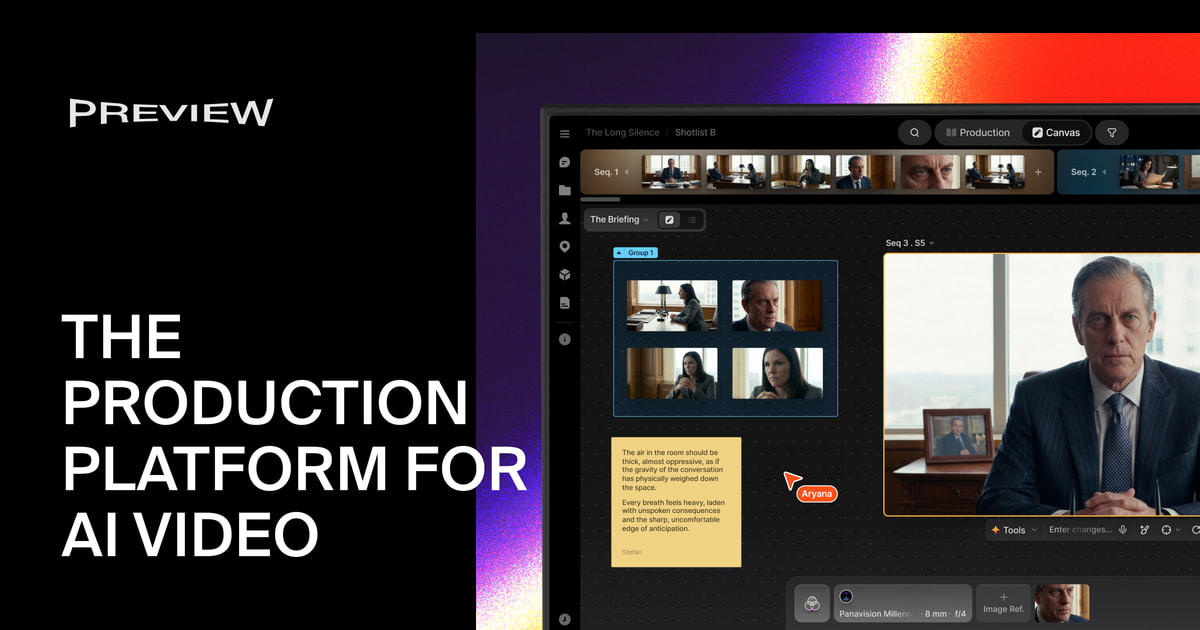
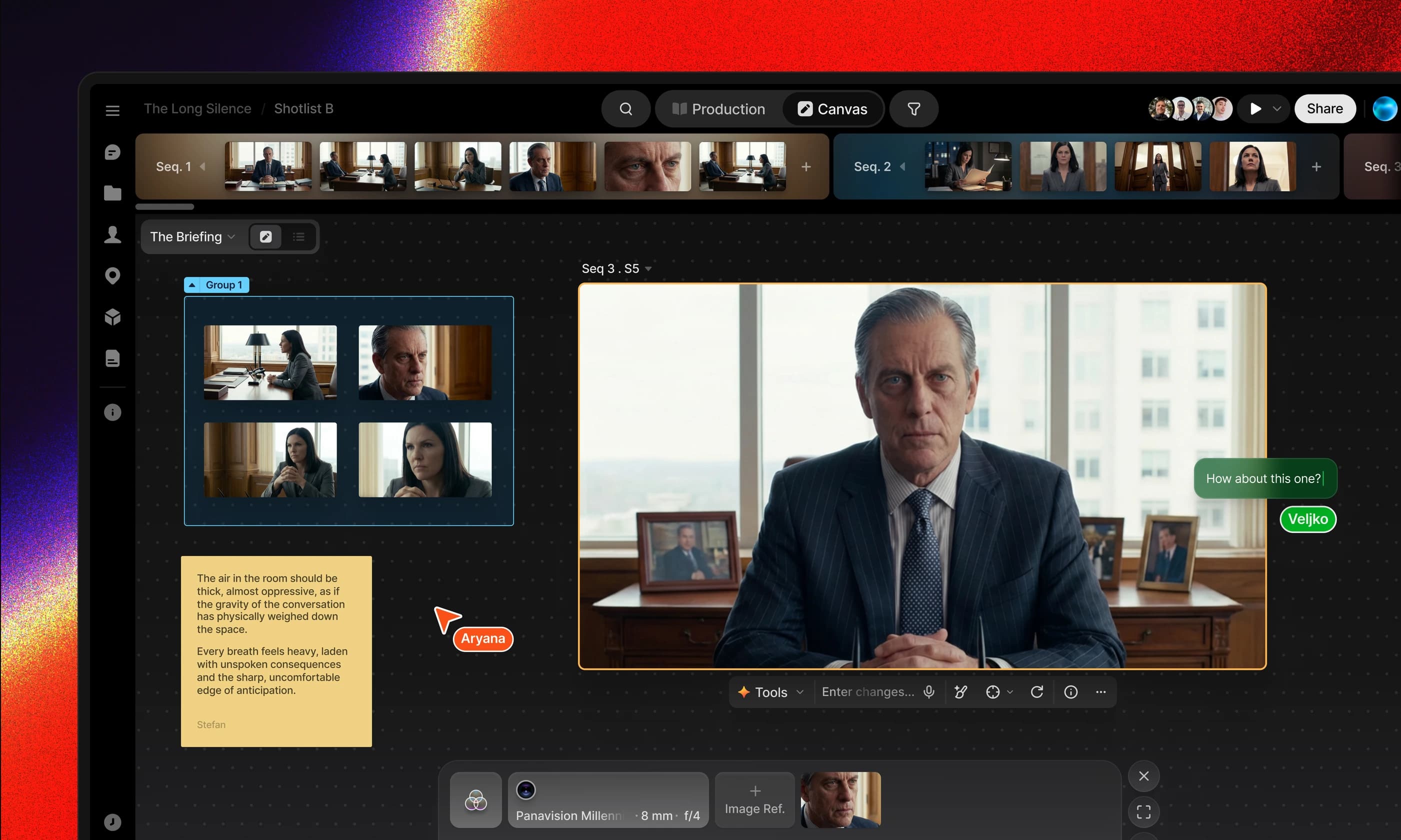
Preview is an AI video production platform that organises work quite differently from a stack of separate generators. Instead of one prompt producing one clip, it gives you an infinite canvas where the script, the storyboard, generated images and video, and review comments all live on the same surface. A sequence timeline along the top pins loose material to specific shots, turning scattered clips into a deliverable structure.
It addresses a concrete problem: generative video models keep multiplying, but stringing them into a deliverable film still means shuttling files between a script tool, an image tool, a video tool, a spreadsheet and a chat app. Preview compresses those stages onto one canvas, where each node is both an asset and a generation record, so editing one part does not destroy the context around it.
The workspace has layers. Studio is the canvas itself, the prompt box calls generation models, groups carve the canvas into labelled regions, the sequence timeline assigns files to shots, the production view tracks metadata and status across sequences, and the project library stores reusable characters, props and sets. That structure mirrors a production pipeline rather than a single generation.
Key features
Infinite canvas with grouped regions
Studio expands as far as the project needs, so the script, reference images, generated results and annotations can sit wherever the thinking puts them. Groups draw boundaries, keeping character sheets, act one and alternate takes in separate zones, and generation can be targeted at a specific zone so dozens of clips do not collapse into one pile. Spatial organisation suits non-linear creative work far better than scrolling a list of thumbnails.
Built-in agent and prompt box
Preview Agent reads project context, so you can ask it for a shot list, have it revise a frame, or let it continue from existing assets instead of re-describing everything from scratch. The prompt box is the direct execution path for generating images and video. The split is roughly discuss versus execute: settle the shot breakdown with the agent, then render each shot through the prompt box.
Multi-model routing and per-frame traceability
Different generation models can be called side by side, so one shot can be rendered by several and compared before you commit. Each frame records who generated it, which model was used and with what parameters, which matters when handing work to a colleague or answering a client question about how a version came about. That trail is often missing from pure generation tools and it directly affects rework cost.
Asset library and @ references
Characters, props and sets saved to the project library can be reused across the whole project, and typing @ inside a prompt pulls a saved asset or an earlier generation into the new request. Cross-shot consistency is the hardest part of AI video: re-describing a face each time tends to drift, while a shared asset reference at least holds the same person and the same prop steady.
Sequence timeline and production tracking
The timeline sits at the top of the canvas, assigning files to specific shots and building the sequence as you go. The production view collects metadata and status for every sequence. One governs what the film looks like, the other governs how far along it is, and keeping those concerns apart is cleaner than tracking both in a single spreadsheet.
Comments and external review
Comments attach directly to the canvas or to an individual file, so internal feedback no longer requires screenshotting into a chat window. Sharing invites collaborators into the project or issues a review link to an external client, which means notes land on the specific frame instead of the client describing which person in the third shot they mean.
How to use Preview
- Sign up and log in on the Preview website, then open the workspace from the official entry point.
- Create a new infinite canvas in Studio as the starting point for this project's work and pipeline.
- Call Preview Agent to build a shot list from the project context, fixing the structure before generating anything.
- Generate images or video through the prompt box, using quick actions to iterate quickly on a direction.
- Save characters, props and sets to the project library, then reference them with @ in later prompts for consistency.
- Organise the canvas with groups, moving worthwhile material from the files view into the right region.
- Assign material to shots on the sequence timeline, then switch to the production view to track metadata and status.
- Collect internal notes through comments, send a review link to the client, and export or hand off once approved.
Who it suits
- Advertising and brand content teams that take a concept all the way to deliverable shots and want to compare models before committing.
- Pre-visualisation and independent film makers validating character tone and set atmosphere before a shoot.
- Creative agencies presenting an interactive storyboard plus AI samples, with client notes attached to the frames themselves.
- Production teams needing multi-person collaboration, external review and a traceable origin for every generated shot.
Limitations to know
- Pricing runs on a pay-as-you-go credit model, but the source does not disclose the credit price, how many credits each model consumes or the available tiers, so confirm on the official site before budgeting.
- Maximum clip length, concurrent generation limits and export resolution are not stated either; do not assume feature-length or broadcast-grade delivery is supported.
- Multi-model routing lowers the cost of trial and error, not the limits of the models themselves: complex camera moves, precise lip sync and long-take continuity still need human selection and pickups.
- Consistency depends on @ references and library upkeep; once a character sheet changes, previously generated shots do not update automatically and must be regenerated.
- The canvas supports team review workflows, but export formats and how the result hands off to downstream editing software are not specified in the source.
Frequently asked questions
How is Preview different from a normal AI video generator?
Normal tools centre on a single clip. Preview centres on the project and its shots: script, storyboard, generation and review share one canvas, and a sequence timeline organises the material into a deliverable structure.
Can several models be used at once?
Yes. The platform routes different generation models, so the same shot can be produced several ways and compared, with the model and parameters recorded for each result.
How do you keep the same person across shots?
Save the character to the project library and reference that asset with @ in each prompt, so every shot builds from one shared definition instead of a fresh description.
Can a client review without an account?
Sharing can issue an external review link, and comments stay attached to the relevant canvas or file.
Frequently asked questions
How is Preview different from a normal AI video generator?
Normal tools centre on a single clip. Preview centres on the project and its shots: script, storyboard, generation and review share one canvas, and a sequence timeline organises the material into a deliverable structure.
Can several models be used at once?
Yes. The platform routes different generation models, so the same shot can be produced several ways and compared, with the model and parameters recorded for each result.
How do you keep the same person across shots?
Save the character to the project library and reference that asset with @ in each prompt, so every shot builds from one shared definition instead of a fresh description.
Can a client review without an account?
Sharing can issue an external review link, and comments stay attached to the relevant canvas or file.