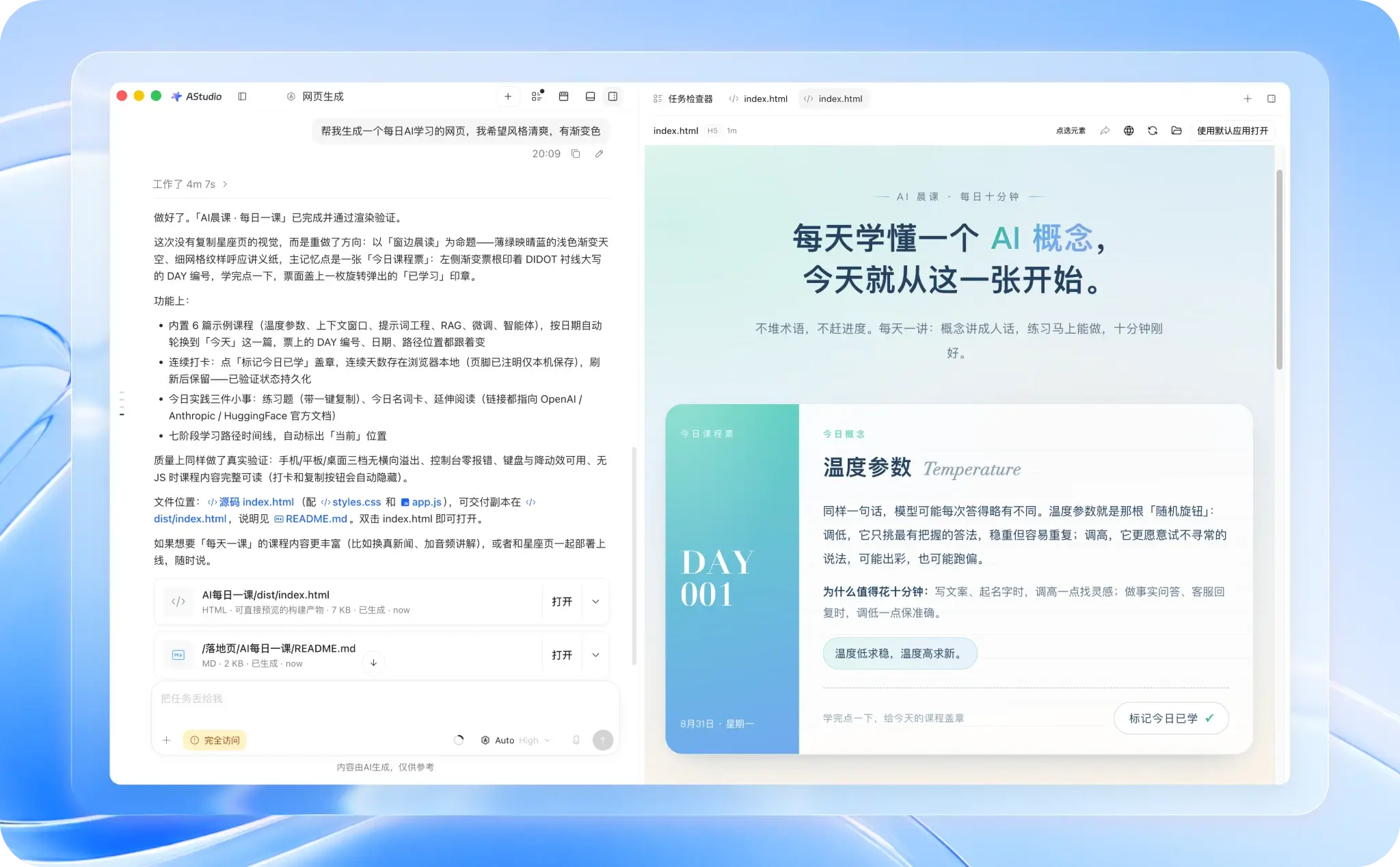
Kimi Code is an AI coding assistant that helps developers understand code, edit files, and run commands from desktop, terminal, or VS Code.
What is Kimi Code?
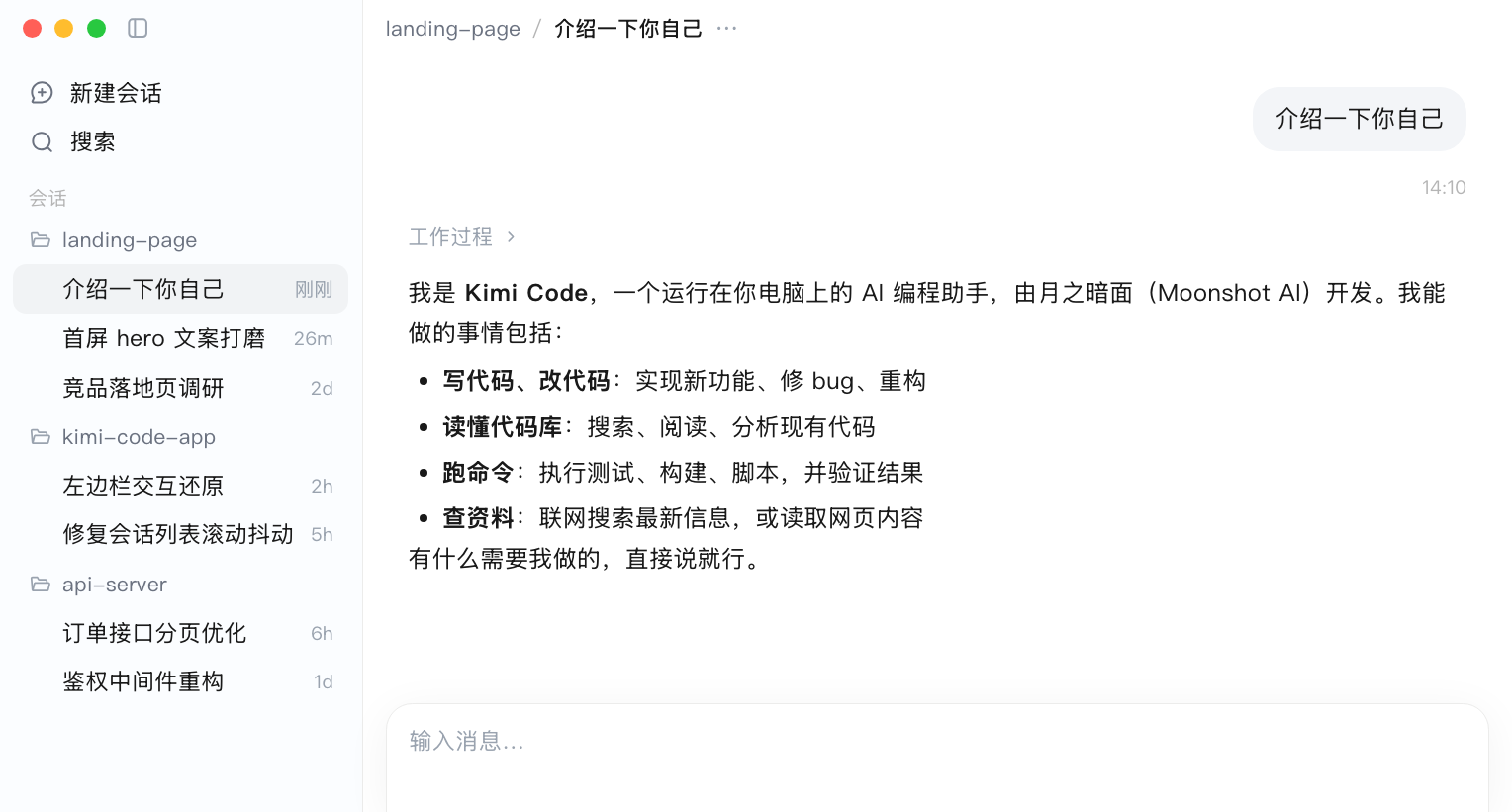
Kimi Code is an AI coding assistant for developers, available through a desktop app, command-line interface (CLI), and VS Code extension. Official materials describe tasks such as reading and analyzing a codebase, editing files, running commands, and looking up web information. It can fit into an existing terminal or editor workflow: describe a focused task, inspect the proposed changes, and verify the result with the project’s own checks.
Main capabilities
- Codebase understanding: Search, read, and analyze project code to help locate relevant files or logic.
- File editing: Propose changes for feature work, bug fixes, or refactoring. Review the diff before keeping edits.
- Command execution: Run developer-authorized commands in a terminal. Inspect commands that install, delete, access networks, or modify data before running them.
- Web research: Search for or read web material to support development work. Verify external information and its freshness.
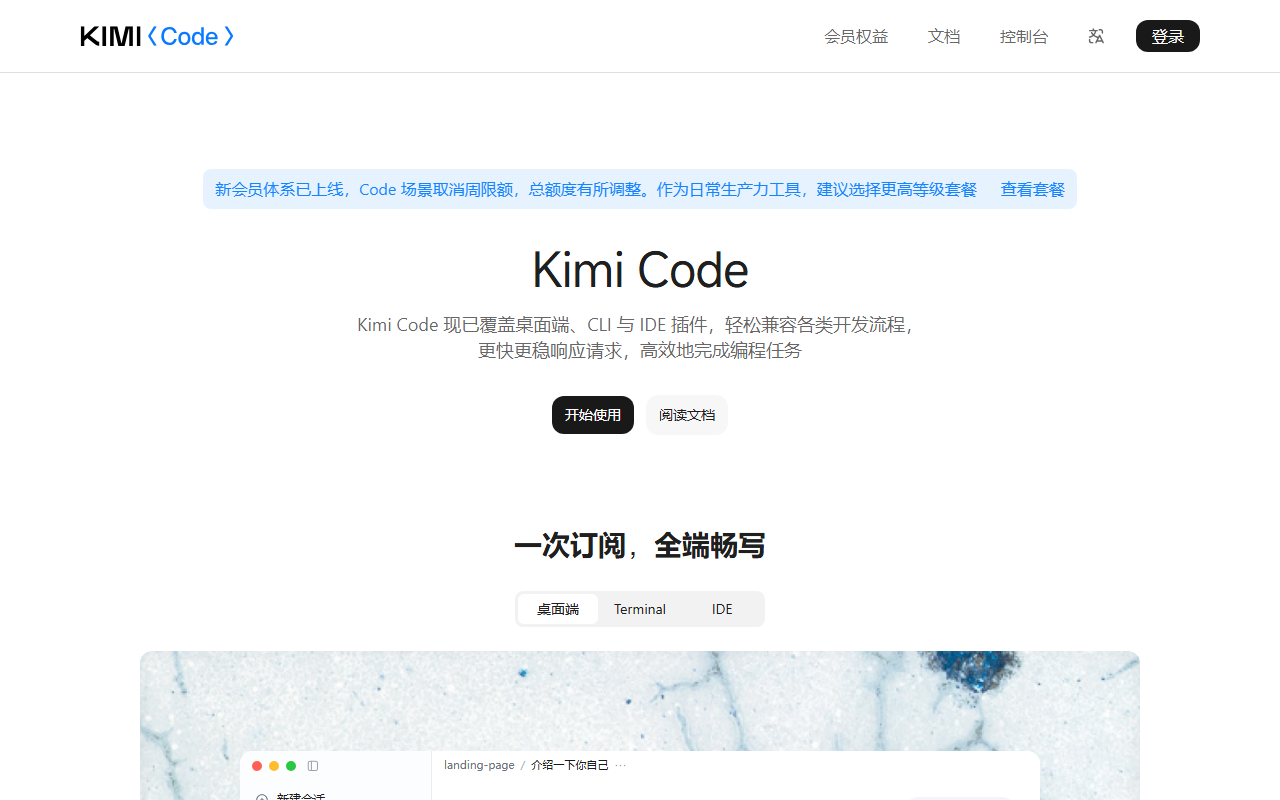
- Different clients: The desktop app provides a graphical interface, the CLI works in terminal sessions, and the VS Code extension integrates into the editor. Details vary by client.
Getting started
- Visit the official Kimi Code page and choose desktop, CLI, or VS Code. Check operating-system and installation requirements.
- Install using the current official guide and sign in as prompted.
- Open or enter the target project and define the files or task scope.
- Give a specific request, such as explaining a module or fixing a defect. Ask for a plan, then review the proposed edits.
- Run the project’s tests, build, or static checks and inspect their output. An AI explanation is not a substitute for verification.
- For third-party integrations, follow that tool’s official instructions. Keep API credentials in protected local settings and out of repositories or public chats.
Use cases and limits
Kimi Code may help with codebase review, daily development, troubleshooting, multi-file changes, and terminal workflows. AI-generated explanations or edits can be incomplete or wrong. Developers should inspect changes, consider command side effects, and validate results with project checks. A person should review actions involving production data, credentials, deployment, or irreversible changes.
The official materials describe access through membership benefits. Available features and usage limits depend on the current plan and may change. Check current documentation and read applicable privacy information before working with private code.
Product page: Kimi Code. Documentation: Kimi Code guides.
FAQ
Does it automatically change an entire project?
It can make edits for a requested task, but developers should set scope, inspect the diff, and validate changes.
How do the CLI and VS Code extension differ?
The CLI runs in a terminal; the extension integrates with the editor. The desktop app provides a graphical interface.
Do I need an API key?
Official-client sign-in and third-party API setup are different. Check the current guide for the target client and protect any credentials.
Frequently asked questions
What can Kimi Code do?
It can assist with code analysis, file edits, command execution, and web research. Available functions depend on the client and account.
Which clients are available?
Official materials list a desktop app, CLI, and VS Code extension, plus guides for third-party integrations.
What should developers review?
Check current plan benefits and client requirements. Review proposed changes and command effects before accepting them.