Yuanqi AI Bot is a Windows AI assistant that can perform desktop tasks from natural-language instructions and, when configured, accept tasks through Feishu or DingTalk.
Yuanqi AI Bot: a Windows AI assistant for desktop tasks
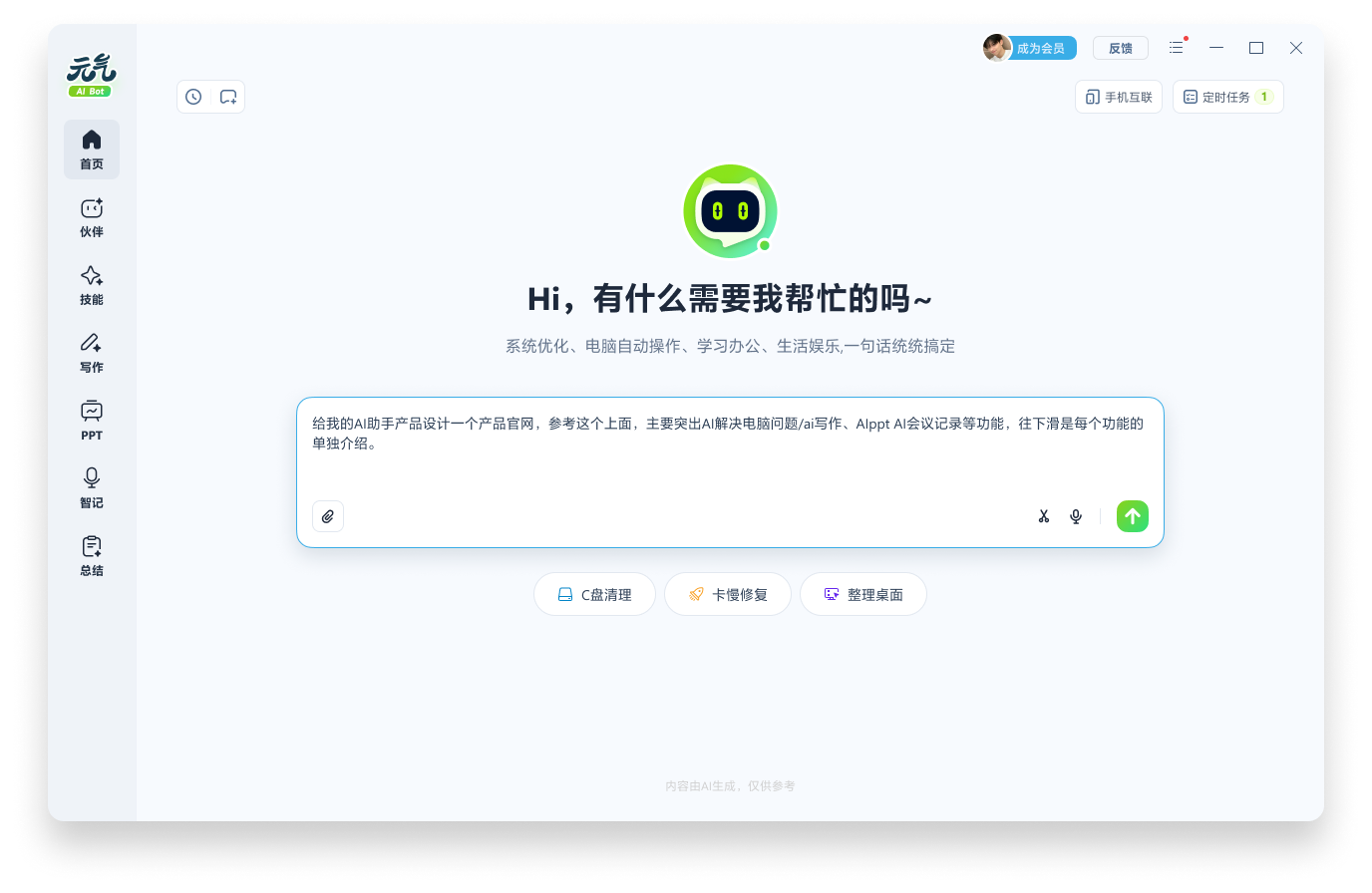
Yuanqi AI Bot is an AI assistant for Windows computers. The supplied product information says it can respond to natural-language instructions and perform desktop actions such as opening software, browsing web pages, or checking email. With the required setup, users can also connect from a phone through Feishu or DingTalk and send tasks to a linked computer. The product also lists AI writing, presentation generation, meeting summaries, system cleanup, basic troubleshooting, and configurable companion personas. Confirm the exact features in the current client.
Main capabilities
- Desktop actions: Describe a task in everyday language, such as opening an application or finding information on a page. Check the result instead of assuming every action succeeded.
- Phone connection: After configuring Feishu or DingTalk, a phone can send instructions to the connected Windows computer.
- Office assistance: The listed tools include writing, presentation creation, and meeting audio or video summaries. These can help prepare drafts and organize information.
- Basic maintenance: System cleanup and basic repair tools are described. Review the proposed changes before allowing cleanup or repair.
- Companion styles: Different AI companion personas are available; the specific choices can vary by client version.
Getting started
- Visit the official Yuanqi AI Bot website and obtain the Windows client.
- Install it and open the conversation interface. Select the mobile connection option and choose Feishu or DingTalk.
- Follow the official instructions to create and configure the required app credentials in the relevant developer platform. Store credentials securely; never paste secrets into public chats or shared documents.
- Add the application on the phone and complete the connection. Begin with a simple, reversible task.
- Check permissions and review the computer after tasks that access accounts, change files, send messages, or modify settings.
Where it may help
The described capabilities may suit remote information checks, opening familiar applications, organizing repetitive computer work, drafting documents, preparing presentations, or summarizing meetings. A phone connection can be useful when you need to send a task to a configured computer while away. Results depend on the client version, connected applications, permissions, and setup.
Limitations and safety
The supplied information does not specify current pricing, supported Windows versions, model or usage details, data handling, or independent safety results. Check the official website and client for these details. Remote desktop access can expose email, accounts, and local files, so grant only necessary permissions and avoid providing passwords or keys to tasks. Require human review before consequential actions such as sending, deleting, purchasing, or changing system settings. Cleanup and repair tools are not a substitute for backups or professional support.
Frequently asked questions
Which phone services are listed?
The supplied information lists Feishu and DingTalk. Follow the current client instructions and confirm availability for your account and region.
Can it handle email and files without supervision?
The product information describes email and file-related computer tasks, but does not establish that every action will be reliable. Confirm sensitive or consequential actions first and inspect the outcome.
What does it cost, and where is data stored?
Pricing and data-handling details were not included in the supplied material. Check the official website and privacy notices before connecting accounts or granting remote access.

Frequently asked questions
What can Yuanqi AI Bot do?
The supplied product information describes natural-language desktop actions, mobile connection through Feishu or DingTalk, writing and presentation assistance, meeting summaries, and basic maintenance tools. Available features may depend on the current client and configuration.
How do I connect it to a phone?
Install the Windows client, open the mobile-connection option, choose Feishu or DingTalk, and follow the official setup instructions for the required app credentials. Keep credentials private and review granted permissions.
Is it safe to let it handle email or files?
Desktop automation can reach local files and signed-in accounts. Start with low-risk tasks, grant only needed access, confirm actions such as sending or deleting, and review the result.