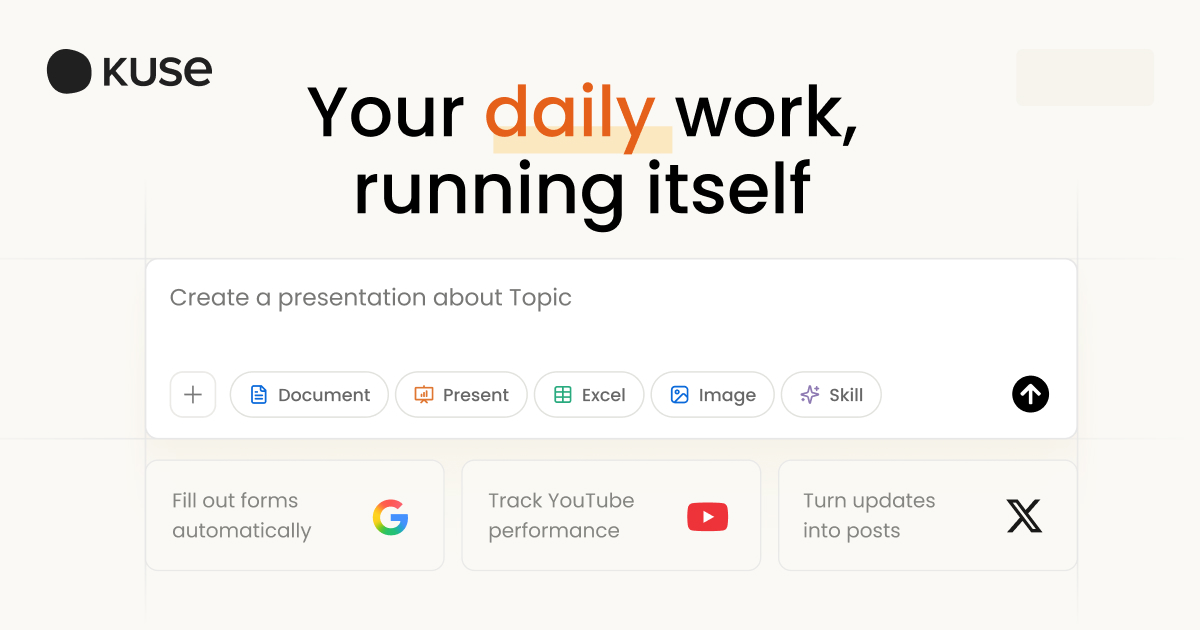
Kuse is built around one unbounded canvas: material arrives as blocks you drag, arrange and connect, and you decide the structure. A built-in assistant polishes text, summarises content, extracts key points and proposes ideas using the canvas as context. It handles text, images, PDFs, video and web links, supports several people editing the same canvas at once, saves to the cloud automatically and exports to PDF, image or text. It suits turning scattered material into something discussable rather than replacing a writing or design tool; the source does not disclose pricing, storage ceilings or collaborator limits.
Kuse: an infinite canvas where the AI works on the same page as your sources
Most people do not lack material; they lack one place that can hold all of it. Links sit in a bookmark folder, PDFs in downloads, screenshots in a camera roll, decisions in a chat thread, and by the time writing starts everything has to be found again. Note apps store things but make relationships hard to draw; whiteboards let you draw but contain no assistant that can read the content. Kuse puts both on one surface: blocks move freely, and the AI sits on the same canvas, able to read what you dragged in and rewrite it in place. Whether it fits depends on whether your work is mostly sorting or mostly producing. For sorting it is clearly strong; for producing, the output formats still decide.
According to the official description, Kuse is a visual AI workspace combining an assistant, an infinite canvas and information integration, positioned as something like a chat tool, a whiteboard and a note tool in one. It emphasises thinking from a human point of view: rather than forcing you into a folder taxonomy up front, it lets you spread material out and express relationships through position and connection. That difference matters early, when you have not yet decided how to classify anything and forced filing would interrupt the thinking.
Seven features support that logic: infinite canvas, AI assistant, multimedia integration, real-time collaboration, information structuring, template reuse, and cloud saving with export. Together they describe one chain: bring raw material in, use the assistant plus your own judgement to shape it into structure, then persist that structure as a reusable template or a shareable file. Whether the tool earns a place depends on the weakest link in that chain, and for most products in this category the weak link is downstream of the canvas: if the only thing that leaves is a PDF or an image, the canvas is a presentation surface rather than a work surface.
What each of the seven features is for
Infinite canvas: spread material out before deciding structure
An unbounded workspace where text, images, PDFs, video and links arrive as blocks you arrange, combine and connect. The value is not capacity; it is permission to start before the structure exists. Put related items near each other, place contradicting claims side by side, push what you are not using yet to the edge. This spatial approach mirrors how people actually sort things, better than repeatedly creating folders. The cost is sprawl: without discipline, a week later you cannot find anything on your own canvas.
AI assistant: working from the canvas as context
The built-in assistant polishes text, summarises, extracts key information and generates ideas on request. The decisive difference from a standalone chat tool is context: you do not paste material into a dialog box, because the assistant reads what is already laid out. That makes tasks like comparing where three sources agree and disagree feel natural. Know the boundary too. It reads what you placed, not what you left out, and the messier the canvas, the less likely the context it picks up is the context you wanted.
Multimedia and structuring: from a pile to a knowledge map
Text, images, PDFs, video and web links are all accepted, and combined with tidying, annotation and layout work they turn scattered information into something understandable. The hard part is not import but subtraction: putting twenty documents on a canvas is the same as organising nothing. A workable pattern is cluster first, then cut, grouping blocks by theme, marking conflicts with connectors, and folding unused raw material to the margins.
Collaboration, templates and export: making structure portable
Several people can work on one canvas at once, content autosaves to the cloud and is reachable across devices, and export covers PDF, image or text. A finished structure can be saved as a template for reuse. The real test of collaboration is not simultaneous editing but whether a colleague opening your canvas understands it, which depends on whether you left annotations and zones. Templates suit structures that recur, such as a fixed competitor-analysis or literature-review skeleton.
Getting started
- Register with an email or Google account, then create a canvas with New Project and name it by project immediately, so you are not facing a wall of untitled boards in a few weeks.
- Start with only five to ten blocks: the core question, what is already known, the hypotheses still to test, the key sources. Give the canvas a skeleton before adding volume; pouring in dozens of files first rarely helps.
- Express relationships with connectors rather than proximity alone. Use one marking convention for causation, one for support versus refutation, one for sequence, or the canvas becomes a thicket nobody can read.
- Give the assistant narrow tasks: polish this paragraph, summarise this zone, list where these three sources diverge. Narrow requests produce usable output; asking it to organise the whole canvas usually yields a vague overview.
- Save stable structures as templates, and choose the export format by destination: an image for a discussion, PDF for archiving, text when the content will be reworked further.
Pricing and limits
- The source does not disclose subscription pricing, free quotas, canvas or storage ceilings, or whether collaborator counts are capped. Confirm the current billing and limit terms on the site or in the app before relying on it.
- A sensible approach is to test by use case: if this is personal research, run one canvas on whatever is available without payment; if it is for a team, first confirm collaborator count, permission levels and export formats meet your requirements.
Who it fits
- People who must consolidate multi-source material into a discussable structure: literature reviews, competitor analyses, pre-project research.
- Creative workers laying out inspiration, reference images and competitor screenshots so the assistant can suggest directions on the same surface.
- Teachers and students building interactive course material or reading notes with help polishing and summarising.
- Small teams that think and sort at the same time, where a shared canvas beats reading documents aloud in a meeting.
Limits and caveats
- The source discloses no pricing, storage or collaborator limits and offers no verifiable official documentation. This article carries no images; confirm interface and behaviour against the version in the app.
- Export formats are limited. PDF, image and text are documented, so if you need to keep working in slide or design software the canvas structure does not travel with it and the export is only source material.
- Canvas freedom cuts both ways. Without a folder constraint there is no default order, so team canvases tend toward muddled zones, duplicated blocks and stale connectors. Agree naming and zoning rules before inviting people in.
- AI output still needs checking. Polishing can shift meaning, summaries can drop qualifiers and ideas can contradict the facts, so anything outward-facing must be verified line by line, especially figures and citations.
Frequently asked
How is Kuse different from a plain whiteboard?
The assistant can read the canvas. A whiteboard only lets you draw; here the AI polishes, summarises and extracts in place, so material does not have to be copied into a separate chat window.
Can it export to slides?
The source documents PDF, image and text only and does not mention a slide format. For a deck you would normally use the canvas content as source material and lay it out separately.
Are there permission levels for collaborators?
The source says several people can work in real time but does not describe permission tiers, view-only sharing or version history. Confirm with the provider before adopting it for a team.
Frequently asked questions
How is Kuse different from a plain whiteboard?
The assistant can read the canvas. A whiteboard only lets you draw; here the AI polishes, summarises and extracts in place, so material does not have to be copied into a separate chat window.
Can it export to slides?
The source documents PDF, image and text only and does not mention a slide format. For a deck you would normally use the canvas content as source material and lay it out separately.
Are there permission levels for collaborators?
The source says several people can work in real time but does not describe permission tiers, view-only sharing or version history. Confirm with the provider before adopting it for a team.